Professional file delivery means sending finished work through a secure, clearly labelled, permission-controlled method with a short written hand-off note that says exactly what is included, what format it is in, and how feedback gets back to you. It is less about the file than about removing every point of confusion around it. Most delivery disasters are access failures, not bad files: an attachment that bounced, a share link that lands on a request-access screen, or three exports with no obvious winner.
The whole job takes about ten minutes once you have a repeatable structure. Freelancers on r/freelance and r/copywriting describe the same frustration repeatedly, version confusion and dead-end links, and the fix that comes up most often is boring: build one package template and reuse it every single time. This guide walks through that package, step by step, with the templates included.
Table of Contents
- What You Need
- Step-by-Step
- Common Mistakes
- Frequently Asked Questions
- What is the best way to deliver large files to a client?
- Should I send a ZIP file or use a cloud sharing link?
- How should I name final files for a client?
- How do I confirm that a client received and opened the files?
- Should delivery links expire after a client downloads the files?
- What should I include in a professional file delivery email?
- Conclusion
What You Need
Before a single file leaves your machine, six things need to exist. If any of them is missing, you are one reply away from a “which file is the final one?” email.
- The finalised files in the format the client actually asked for, exported fresh rather than reused from an old folder.
- A folder structure that separates deliverables from working files, so the client never opens something you were not ready to show.
- A delivery method picked against the real file size and the client’s technical comfort, not against habit.
- Version details for every item: version number, date, and what changed since the last round.
- A hand-off note listing what is included, naming conventions used, licence or usage terms, and the next action you want from them.
- Confirmation details: where to report problems and how quickly you expect to respond.
Have all six ready and the actual send takes two minutes. Skip any one of them and it becomes a week of back-and-forth.
Step-by-Step
Here is the full hand-off workflow, from packaging to confirmation. Eight steps, in the order that avoids rework.
1. Organize the Files
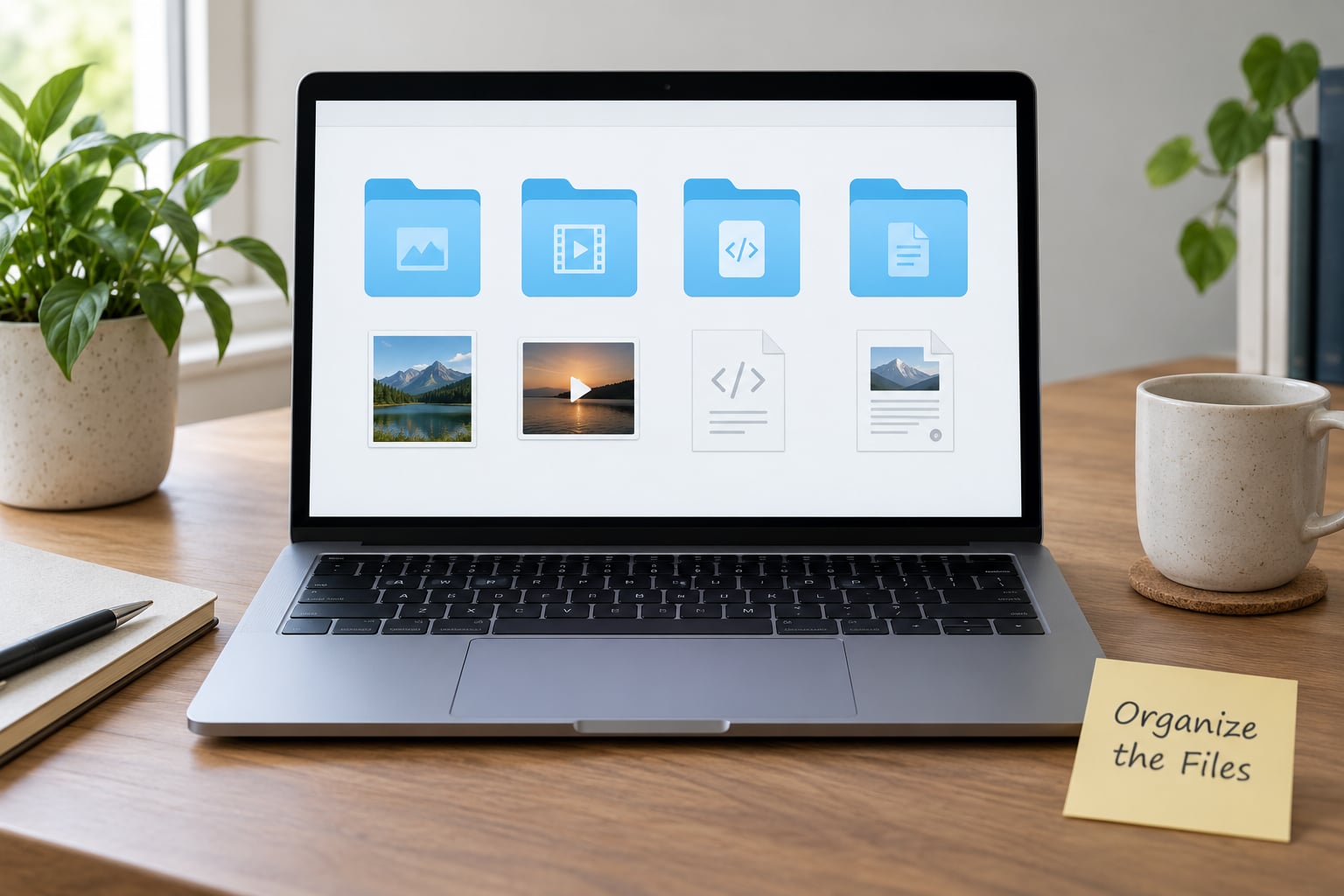
Build the package so the client can find what they need without asking you. A structure that works across industries looks like this:
ClientName_ProjectName/
  01_Final_Deliverables/
  02_Source_Files/        (only when contracted)
  03_Reference_Documents/
  04_Preview/
  README.txt
Three habits keep this clean. Export the deliverables fresh from the working file, not from a folder where three exports live side by side. Cut anything the client did not ask for, since every extra file is a question you will be asked. And when you do ship source files, put them in their own numbered folder rather than mixing them in with the exports.
A low-resolution preview folder earns its place more often than people expect. Designers on Quora describe sending a web-size preview over an HTTPS link so the client can review work without holding a stealable high-resolution master, and the high-res release waits for cleared payment.
2. Name Files Clearly and Consistently
Use one pattern and never deviate: Project_Item_YYYYMMDD_v01.ext. A real example reads BrandRefresh_LogoMaster_20260304_v03.ai, and the client can decode the project, the item, the date it was made, and the version number without opening anything.
Pick capitalization once too. Title Case with spaces around separators is easiest to read on every operating system, while underscores avoid the encoding problems older Windows machines have with long names. What matters is that every file in the package follows the same rule.
Avoid the FINAL_FINAL2 pattern. If you need to mark approval, put it in the hand-off note rather than the filename, since filenames travel and notes get read. One obvious final file beats five files arguing about which is final.
3. Check the Delivery Format
Ask for the specification in writing before you export, then confirm your export matches it. Typical specifications include format and container, resolution or sample rate, color profile, bit depth, and whether the client wants flattened or layered/source files.
Email attachment limits are the reason a surprising number of otherwise good deliveries fail. MIME encoding inflates binary attachments by roughly a third, so the file you think is 24 MB arrives on the wire closer to 32 MB.
| Provider | Stated attachment cap | Realistic max single file | Note |
|---|---|---|---|
| Gmail | 25 MB per message | About 18 MB | Message bodies above roughly 10 MB get clipped into a “view entire message” link |
| Yahoo Mail | 25 MB per message | About 18 MB | Encoding overhead applies the same way |
| Outlook.com | 20 MB per message | About 14 MB | Tightest of the major consumer providers |
| iCloud Mail | 20 MB per message | About 14 MB | Same encoding overhead |
Takeaway: keep attachments under about 18 MB. Anything larger goes out as a link, not as an attachment.
4. Add a Professional Handoff Note
The hand-off note is the difference between a professional handoff and a pile of files. Put it in the package as a text or PDF file named README, and paste its short version into the email body so the client sees it without downloading anything.
A hand-off note worth copying contains: the project name and delivery date, a numbered list of every file included, the version of each and what changed, any files deliberately excluded, licence or usage terms, and the single next action you are asking for.
Keep it under 150 words. The note is a map, not a contract, and anything longer stops being read.
5. Choose a Secure Delivery Method
Match the method to the file size, the sensitivity of the material, and how often the client will need to come back to it.
| Method | Best for | Max practical size | Client friction |
|---|---|---|---|
| Email attachment | Small documents, under 18 MB | Under 18 MB after encoding | None, but it breaks silently past the cap |
| Cloud link (Google Drive, Dropbox, OneDrive) | Ongoing projects and shared folders | Practically unlimited | Low if permissions are set correctly, high if they are not |
| Transfer service (WeTransfer, Dropbox Transfer) | One-off large handoffs | Gigabytes | Very low, but links expire |
| Client portal | Retainers and recurring deliverables | Unlimited | Lowest, since the client is already set up |
| Physical drive or courier | Confidential or archival material | Terabytes | Slow, but nothing lives in the cloud |
Set permissions before you send, not after the client complains. View-only suits finished deliverables the client should review and download but not modify. Edit access makes sense only while revisions are genuinely collaborative. Password protection and an expiry date belong on confidential or embargoed material.
The most common link failure is permission inheritance: you share from inside a folder that belongs to a personal account, so the recipient lands on a request-access page that only you can approve. Share the file itself, or share at a level where you control who can open it.
6. Test the Link and Files
Spend two minutes testing. It is the cheapest insurance in this workflow.
- Open the link in a private or incognito window, exactly as an unauthenticated visitor would.
- Confirm you land on the files, not on a sign-in wall or a request-access screen.
- Download one file, then open it and confirm it is not corrupted.
- Test a second file on a phone or another machine if the client works across devices.
- Check the folder tree looks right from outside, not just on your own machine.
If you sent an email attachment, open the sent copy and confirm nothing was stripped or clipped.
7. Send the Delivery Message
Keep the message short: link, what is inside, what you need back, and when you need it. These five templates cover most handoffs.
Final delivery
Hi [Name], the final [project name] files are here: [link]. Included: [list]. The hand-off note in README covers formats, colour profiles and licence terms. Could you confirm you can open everything and let me know about anything that needs a change by [date]? Anything urgent, reply here and I’ll pick it up.
Large file link
Hi [Name], the masters and assets are too large to attach, so I’ve put them on [link] with view-only access. The link stays active until [date]. If it asks you to sign in or request access, tell me and I’ll send a direct download link instead.
Revision round
Hi [Name], v03 is uploaded and linked. Changes in this round: [summary]. Everything unchanged from v02 is untouched, so the diff is easy to review. Same link as before, new folder on top.
Source file release
Hi [Name], as agreed, the source files are now available at [link]. Please keep the folder structure intact and don’t re-upload to the shared folder, or revisions get confusing. These are licensed for [usage]; extending beyond that needs a separate conversation.
Invoice with work
Hi [Name], invoice [number] for the final milestone is attached, and the finished files are here: [link]. The files are yours on receipt of payment as per the agreement. Preview versions are in the 04_Preview folder if you need to share internally before then.
8. Confirm Receipt and Archive the Handoff
Close the loop in the same message. Ask for an explicit confirmation, not a read receipt, since read receipts only prove the email was opened, not that the files were.
Then record the handoff: date, method, link, file list, version numbers, and the reply you got. Keep a copy of the sent message in the project folder, since that record is what you point to if a dispute comes up months later about what was delivered and when.
Archive rather than delete. Move the package into a dated folder per client per year so revisions and re-deliveries are quick later.
Common Mistakes
Each of these shows up constantly in forum threads about client handoff, and each has a straightforward correction.
- Vague filenames like
final_final2.psd. Fix: use the project_item_date_version pattern and put approval status in the note. - Sending the wrong version, usually because three exports sat in one folder. Fix: export fresh into a dated deliverables folder and verify the version number before uploading.
- Links that have expired by the time the client gets around to opening them. Fix: set a generous expiry, state the date in the message, and offer a re-send.
- Public anyone-with-the-link sharing on confidential work. Fix: restrict to named recipients, add a password for embargoed material.
- Request-access dead ends from permission inheritance. Fix: test in a private window before sending, every time.
- Sending through chat apps like Slack or WhatsApp, which compress uploaded media so the client gets a degraded file. Fix: link to the real file instead.
- Split archives that confuse anyone who is not technical. Fix: one archive, or a folder, never part-one and part-two.
- No instructions about which file is which or how to give feedback. Fix: the hand-off note, every time, without exception.
- No record of delivery. Fix: keep the sent message and log the confirmation reply against the project.
Frequently Asked Questions
What is the best way to deliver large files to a client?
Upload the files to cloud storage such as Google Drive, Dropbox or OneDrive, set view-only permissions for the named client, and send an HTTPS link instead of an attachment. Email attachments cap out around 25 MB and shrink to roughly 18 MB of real file after MIME encoding. Test the link in a private window first, and note the expiry date in your message.
Should I send a ZIP file or use a cloud sharing link?
Use a cloud sharing link for anything over about 18 MB, anything the client may need again, or anything confidential. A ZIP only makes sense for a small, single, one-off package that arrives in one piece. Avoid split archives entirely, since people lose track of which parts they have already unpacked.
How should I name final files for a client?
Use Project_Item_YYYYMMDD_v01.ext and apply the same rule to every file in the package. Keep capitalization and separators consistent, and keep approval status out of the filename. A client should be able to decode project, item, date and version without opening the file or asking you a question.
How do I confirm that a client received and opened the files?
Ask for an explicit reply in the delivery message rather than relying on read receipts, which only confirm the email was opened. Many cloud and transfer tools also send a download notification to the sender. Keep the sent message and the client’s reply in the project folder so you have a dated record of delivery.
Should delivery links expire after a client downloads the files?
Set an expiry date so links do not stay open forever, but make it generous, typically at least a month past the deadline you agreed. Always state the expiry date in the message so expiry never comes as a surprise, and keep your own copy of the package so re-sending takes a minute rather than a rebuild.
What should I include in a professional file delivery email?
Include the link, a short list of what is in the package, the format and licence terms, and one clear next action with a date. Add a note on where to report problems and how quickly you will respond. Keep it under 150 words, since a delivery message is a handoff note rather than a proposal.
Conclusion
Start with three things and the rest gets easier. Confirm the format specification in writing, build the package using one folder structure and one naming pattern, then test the link in a private window before anyone else sees it.
Everything after that is habit: the hand-off note, the short message, the confirmation request, the archive. People who deliver files to clients professionally are not doing anything clever, they are simply sending the same well-organised package every time instead of improvising a new one for every project.