Recording a DJ mix at home is easier than most beginners expect: connect your setup to a computer, hit record on the recorder built into your DJ software, and the master output gets captured as a WAV file you can listen back to and upload. The whole thing takes about ten minutes to set up, and the hard part is usually avoiding hum and clipping rather than pressing the button.
There are four ways to do it. Use the record function inside your DJ software if it exists, loop the master output back into the same computer, send it through an audio interface, or capture it on a phone. Most people start with the first one and move to the second within a month.
If your goal is to hear yourself the way a crowd does, then recording is not optional. You cannot fix a muddy transition you have never heard. This guide covers the setup, the levels, the export, and the specific mistakes that produce silent or distorted files.
What You Need to Record a DJ Mix at Home
The bare minimum is a laptop running your DJ software, a controller or mixer connected over USB, and free space on the drive. That genuinely is enough for most home sets.
A more reliable setup adds a small USB audio interface with a proper line input, a pair of closed-back headphones for cueing, and an external drive or cloud folder so a crash cannot take the take with it.
Storage is the one thing people get wrong. An hour of stereo audio at 44.1 kHz and 24-bit runs to roughly 1.2 GB as a WAV file. Clear 10 GB before you start.
Then there is the licence question, which catches almost everyone. Serato DJ Lite is free but does not include set recording. Mixxx and Engine DJ record sets in their free tiers. rekordbox, Traktor Pro, VirtualDJ and djay Pro all record in their paid tiers.
One more practical note about monitoring: whatever you hear through your speakers during the recording can leak into it. Headphones on your ears and speakers muted is the safe combination.
Step-by-Step: How to Record a DJ Mix at Home
Set Up Your Room and Computer
Do a silent test before anything else. Close every application, mute your phone, sit in the room for thirty seconds and listen. If you can hear traffic, a fridge compressor or a wall hum, the noise will be on the recording.
You will not remove that noise completely. You can only make it quiet enough that it sits below the music, and a quiet setup beats any amount of post-processing.
On the computer, close browser tabs and streaming windows, then disable sleep, screen saver and automatic updates for the length of the session. Nothing ruins a take faster than a laptop that decides to update mid-transition.
How to tell it worked: your hard drive shows enough free space for the whole planned set, and the recording bar is moving when the DJ software is playing.
Connect the DJ Controller or Mixer
Plug the controller into the laptop over USB, power it on before you open the software, and open the DJ software. Most controllers enumerate as both a playback device and a recording device, which is what makes the built-in recorder work.
Play a track and watch the software’s level meters. If the meters move and the master output meter in the software stays still, the software can see the hardware. If the master meter is moving but nothing appears at the input you plan to record from, you have a routing problem, not a hardware one.
Put your headphones on before you raise the master fader. Cueing through speakers at volume is how people discover feedback for the first time, usually at 11 p.m. in a small room.
Choose Recording Software
Start with the recorder built into your DJ software. rekordbox, Serato DJ Pro, Mixxx, Traktor Pro, VirtualDJ and Engine DJ each have one, they capture the master output directly, and they save the file into a recordings folder with track markers already placed for you.
If your licence does not include it, or you want more control over the file, record from outside instead. Audacity and Reaper can both capture the master output through the audio interface, and they let you set the sample rate and bit depth yourself.
Loopback is the free middle path. You set the DJ software to also emit a USB or PC signal, then choose your computer’s own playback device as the recording input in Audacity. Community consensus on r/Beatmatch is that this works, and it costs nothing.
Screen capture is the fallback. Recording the system audio inside OBS Studio gives you a usable file even when everything else has failed, though it adds a video track you have to throw away.
How to tell it worked: you have recorded ten seconds and the file plays back on a device that has nothing to do with your DJ gear.
Set Input and Recording Levels
Set the recorder’s sample rate and bit depth to match what the DJ software is already outputting. Mismatching them forces a conversion that can introduce noise nobody asked for.
Now the part most people skip: pull the master fader all the way down, start the recorder, and play a track at normal volume. Watch the input meter on the recorder and bring the fader up until the peaks land around -12 dBFS.
That number matters. Peaks at -6 sound fine and leave no room. Peaks at -3 distort, and distorted recordings are the single most common complaint from bedroom setups.
Set the recorder’s input gain so it never has to clip the signal on its way in, then leave it alone for the whole session.
How to tell it worked: the meter bounces without the red clip indicator ever lighting up, and the loudest moment in your track peaks below -6.
Record the DJ Mix
Start the recorder at least five seconds before the first track plays. Starting late is the most common editing chore nobody enjoys.
Let it run. Watch the meters rather than the tracks, and if you want to mark a moment for later, your DJ software’s own recorder will add track markers automatically where the external one will not.
If you use a microphone for talkovers, be honest about where you are recording it from. A mic on a boom over the speakers captures the room, and so does any talking you do with headphones off.
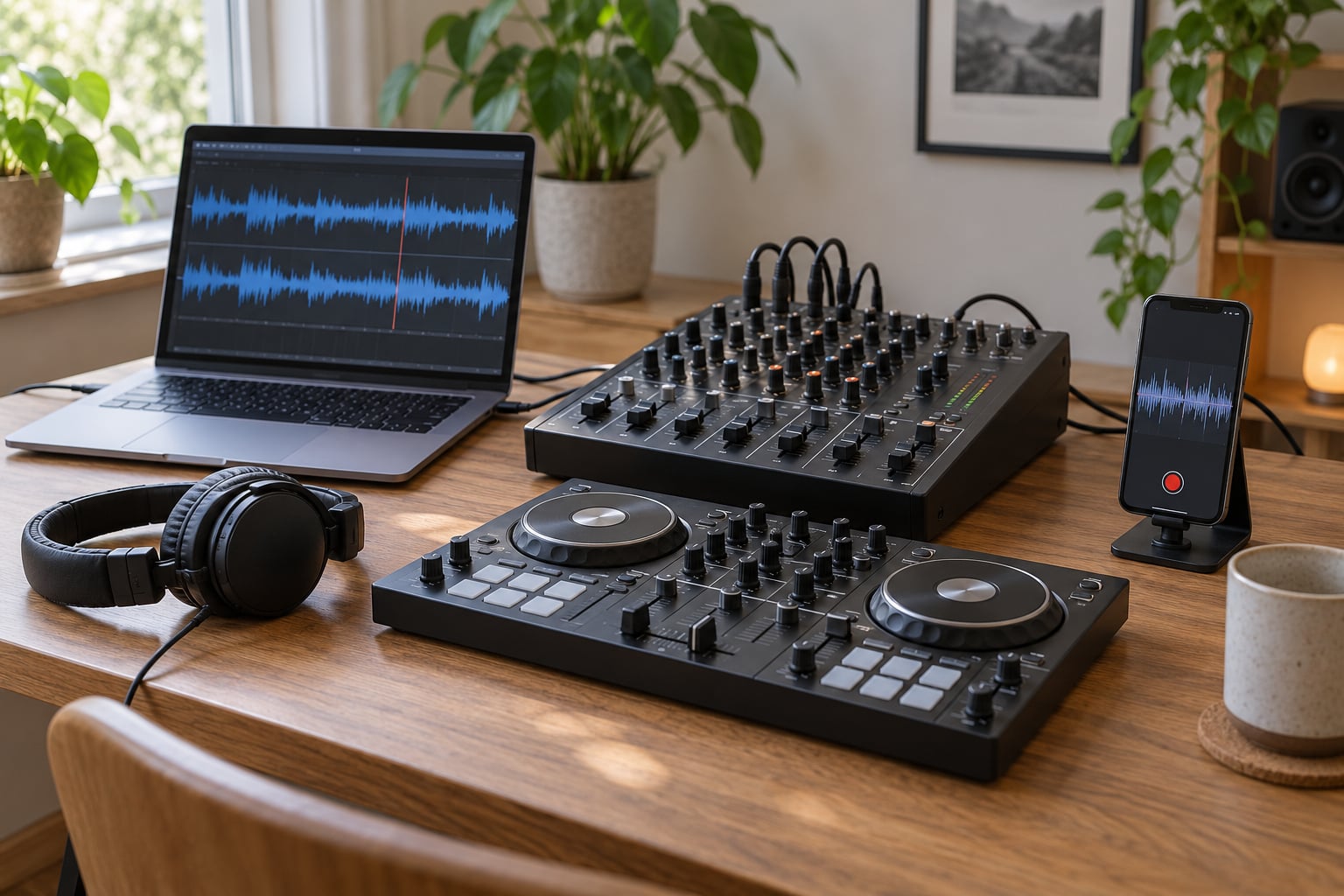
For a long set, run a second capture in parallel. A phone on the same table recording the mixers output costs nothing and gives you something to fall back on if the primary file fails.
Check the Recording
Stop the recorder rather than just closing the window, then let it finalise the file header before you unplug anything. Copy the take to a second location immediately, because the file on the recording drive is the one that gets corrupted.
Play it back on something unrelated to your setup: a phone speaker, a browser, a different interface. This single check catches the most confusing failure in home recording.
That failure is the silent file. A recording made through a virtual cable or a loopback device can play back fine on the computer that captured it, then fall silent the moment you unplug the controller. It looks like a broken file and it usually is not. The recorder was listening to a device that no longer exists, so it saved silence. Saving as WAV rather than MP3 avoids most of this, because a lossy encode of a silent input is still silent.
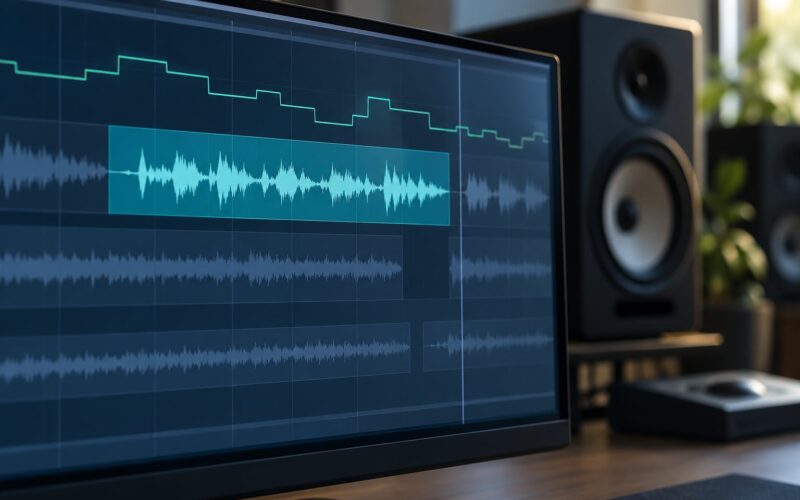
Then look at the waveform. A flat line means no signal. A solid block at the top means clipping. A repeating ripple pattern across quiet sections means hum.
Edit and Export the Mix
Trim the dead air at the start and the trailing silence at the end. That is the only editing most mixes actually need.
Apply light noise reduction to the quiet passages only, running a short sample of room tone first. Aggressive noise removal across a whole mix sounds underwater and wrecks the kick drum.
Set your final loudness. Streaming platforms normalise to roughly -14 LUFS, so exporting a mix much quieter than that leaves it quiet on every listener’s phone. Export two files: an uncompressed WAV master you keep, and a compressed MP3 or AAC around 320 kbps for uploading and sharing.
Fill in the title, artist and genre fields before you upload, because most hosts scrape metadata from the file itself.
One legal note before you publish anything: recording a mix for practice is fine, publishing one is a different question. Short excerpts fall closer to fair use than full sets, and a full uploaded mix of commercial tracks is the kind of thing that gets claimed. Check the licence on the material.
Common Mistakes That Ruin a Home Mix Recording
The file plays back silent once you unplug. This is almost always the loopback or virtual cable path, not a corrupt file. Choose a physical input, or export to WAV.
The recording sounds distorted. You are pushing the master fader too high to compete with an untreated room. Pull it back to peaks around -12 dBFS and let the limiter do the rest.
There is a constant hum in quiet passages. That is a ground loop, usually from running power and signal cables in the same bundle. Separate them, or lift the ground on one end of the chain.
You hear feedback as soon as you connect. You are cuing through speakers. Headphones on, speakers off, master down while you plug things in.
Transitions glitch or drop in the file but sound fine live. That is buffer size and latency, not your mixing. Raise the buffer size in the DJ software, or record with the software’s built-in recorder so timing is handled internally.
Windows only: nothing arrives in Audacity. Check the playback device in Audacity’s device toolbar against the device your DJ software is actually outputting to. This one sends people in circles for weeks, and it never happens on macOS.
The set vanished after a crash. Recording straight to the system drive with no copy means one restart erases the take. Copy as you go.
Frequently Asked Questions
Can I record a DJ mix directly from my controller?
Usually yes. Most USB controllers present themselves as both a playback device and a recording device, so the software running on your laptop can capture the master output straight from them without any extra hardware. Check the controller’s audio settings for a master or record output and enable it if it is off. Standalone all-in-one units are the exception, since they have no computer attached and record to microSD or USB instead.
What software should I use to record a DJ mix at home?
Use the recorder built into your DJ software if your licence includes one. Mixxx and Engine DJ record sets in their free tiers, while rekordbox, Traktor Pro, VirtualDJ, djay Pro and Serato DJ Pro record in their paid tiers. Serato DJ Lite is free but cannot record. If your tier has no recorder, Audacity or Reaper capturing the master output through your audio interface is the usual fallback.
How do I record a DJ mix without hearing feedback?
Wear closed-back headphones and keep your speakers off or at zero during the recording. Feedback happens when live sound from the speakers reaches the microphone, the cue channel or a pickup in the mixer. It also ruins the recording, not just your ears, because the squeal is captured in the file. Mute the master fader whenever you plug cables in or leave the desk, and bring it back up only with headphones on.
Should I record a DJ mix as a WAV or MP3?
Record to WAV and keep it. An uncompressed file keeps everything, and it is the safest format for editing and for files captured through loopback or virtual audio routing, where a lossy encode can lock in silence. Export a second compressed MP3 or AAC around 320 kbps only for uploading and sharing. Keep the WAV master even after you publish the compressed copy, because you will want to re-export it one day.
Do I need a microphone to record a DJ mix?
No. A DJ mix recording is the master output, the summed stereo signal your audience hears, and capturing that needs only a recorder connected to the master out. A microphone adds a talkover channel but also adds problems: room noise, feedback risk and unpredictable levels. If you want voice, record the music and the mic as separate tracks on the same computer and mix them afterwards, which is far easier to balance than trying to ride both live.
Conclusion: Record a Short Practice Set First
Start with one thing tonight: open the recorder in your DJ software, play a track at normal volume, and pull the master fader until the input peaks sit near -12 dBFS. That level test takes two minutes and prevents most of the problems described above.
Then record a fifteen minute practice set rather than a full hour. Listen to it once all the way through without touching anything, and write down the single worst moment. Fix that one thing in your next set. Repeat, and your mixes will improve faster than they ever did from cue practice alone.