To make beats on your phone, pick a mobile DAW, set a tempo, program a drum pattern in a step sequencer, then layer bass and melody underneath it until you have a loop worth exporting. Most people get a usable first beat in an afternoon, and the whole process costs nothing beyond the app you already have on the phone.
What you cannot do on a phone is mix a dense, plugin-heavy production the way you would on a desktop. That is not a problem if your goal is sketching ideas fast, building a catalog of type beats, or learning how rhythm and arrangement actually work, because a phone is genuinely good at all three.
This guide walks through the full workflow, the apps worth knowing for iPhone and Android, and the setup choices that keep you from fighting the small screen. It is written for 2026 versions of the major apps, so menu names may differ slightly on older devices.
Table of Contents
- What You Need
- How to Make Beats on Your Phone: Step-by-Step
- Frequently Asked Questions
- What is the best app for making beats on my phone?
- How do I make beats on my phone for free?
- Can you make professional quality beats on a phone?
- How do I transfer beats from my phone to my computer?
- What AI app can I use to create beats?
- Do I need MIDI keyboards or an audio interface to make beats on my phone?
- Start With One Loop and Build From There
What You Need
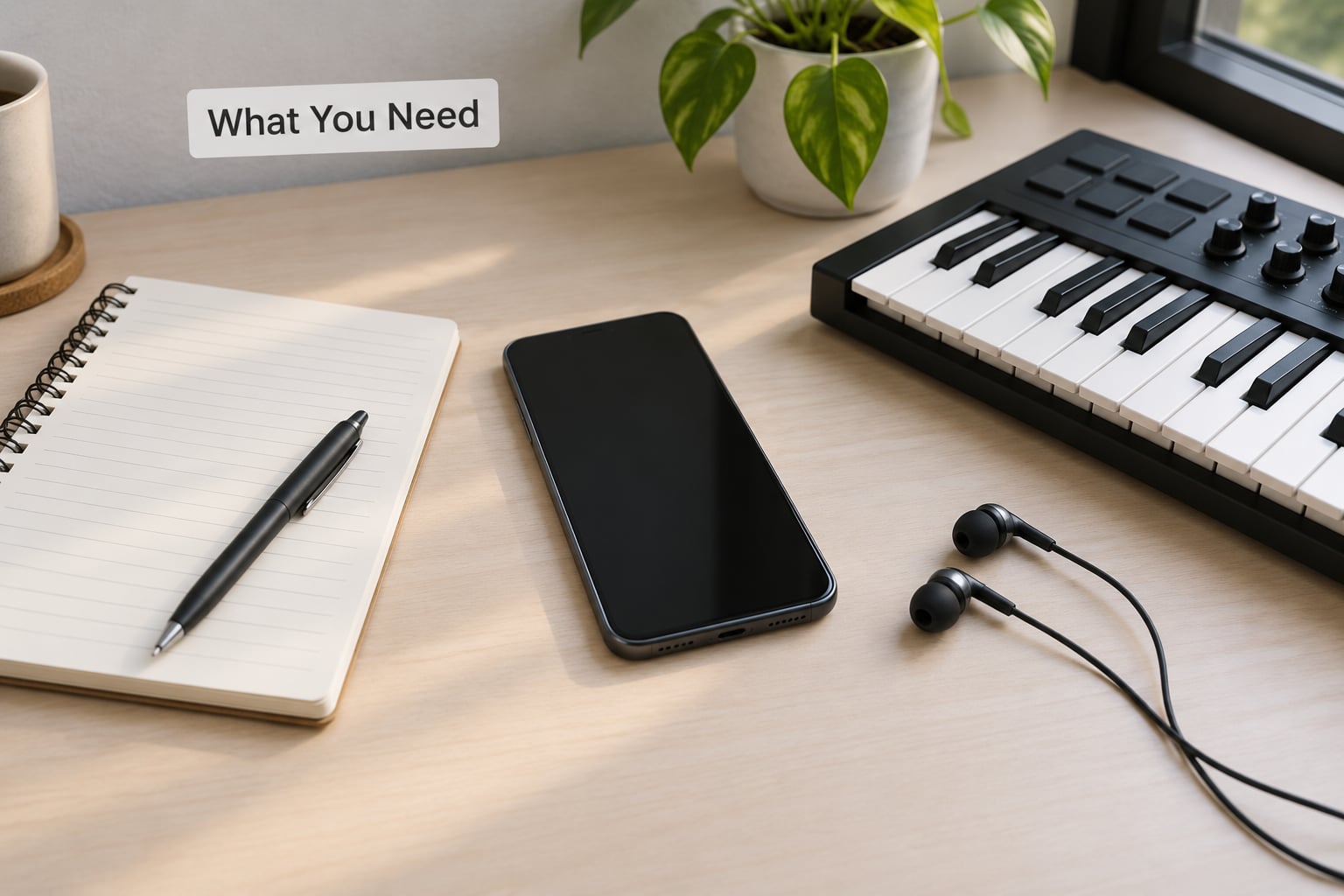
The phone you already own will work, but a few things matter more than the model. Anything from the last four or five years handles multi-track playback and effect chains without complaint.
Here is the short list:
- A phone running a recent iOS or Android release, with a few gigabytes of free storage
- One mobile DAW app
- Wired headphones with a detachable or USB-C cable
- Optional: a small MIDI keyboard or pad controller that plugs into the charging port
- Optional: a backup drive or cloud folder, so one lost project is not a lost week
Music production apps for iPhone
Apple devices have the deepest set. GarageBand iOS is free, ships with every iPhone, and its step sequencer is the gentlest place to learn. BandLab runs on iPhone too, free with a working cloud library and real-time collaboration. FL Studio Mobile, Beatmaker 3, Cubasis, Koala Sampler, and Ableton Note cover everything from full DAW workflows to sample chopping.
Music production apps for Android
The Android catalog is thinner but far from empty. BandLab and FL Studio Mobile both run natively, so either one can handle a serious project. Caustic and Audio Evolution turn up most often in producer forums, and any of them paired with a Bluetooth MIDI keyboard works well enough for sketching.
What actually improves the result
Wired headphones are the single biggest upgrade. Bluetooth adds enough lag that you cannot judge timing against a click, and producers on r/iosmusicproduction describe it as unusable for anything rhythmic. Volume matters too: keep every track under three quarters and the master under the red line so nothing clips when you export.
How to Make Beats on Your Phone: Step-by-Step
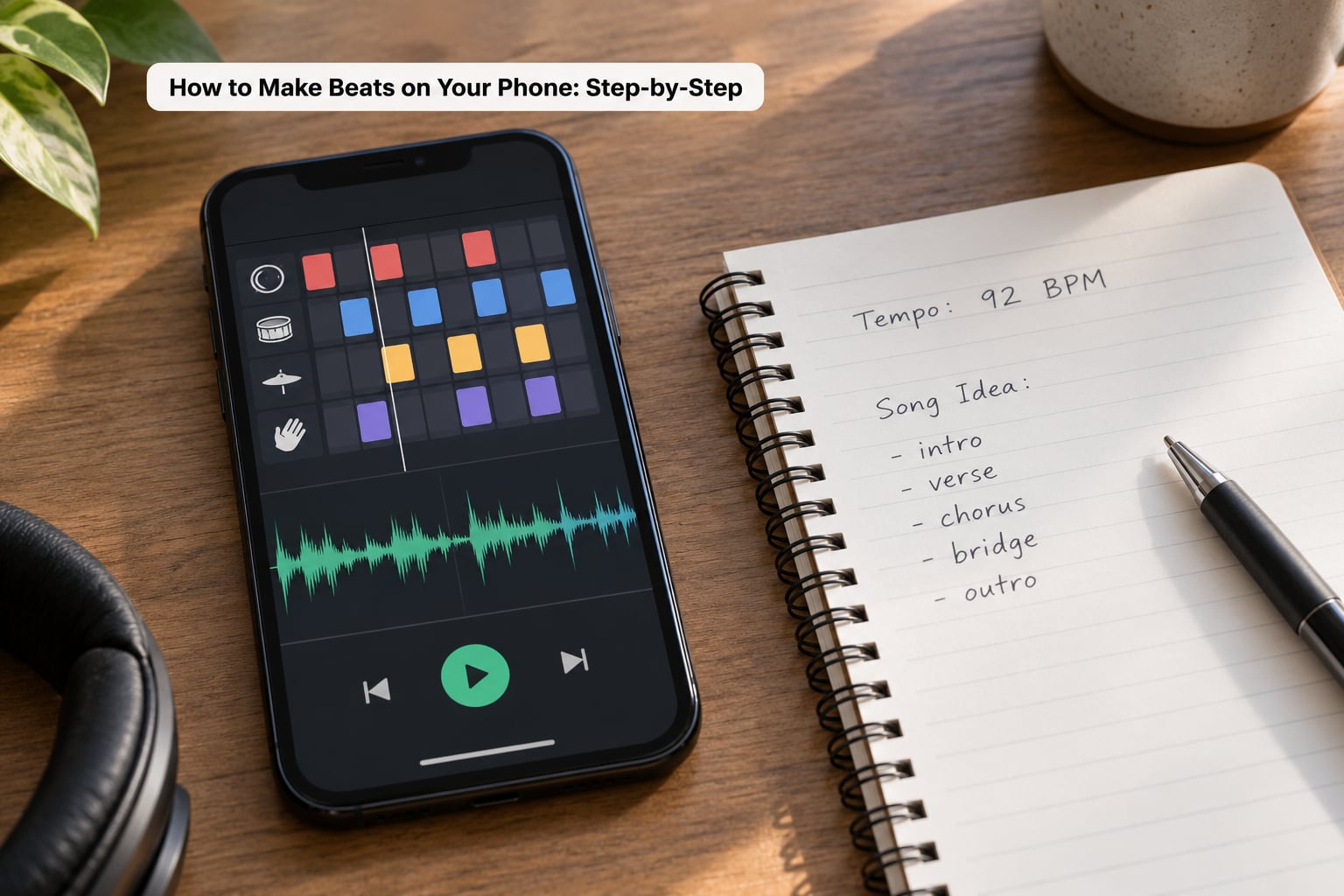
Every beginner’s first instinct is to open a sampler and start chopping. Resist it for one session. The order below works because drums carry the identity of a track, and everything you add afterwards serves the groove rather than fighting it.
Set the Tempo, Key, and Project Length
Before any sound loads, decide three numbers. Tempo is the first: somewhere in the 80 to 100 range sits comfortably for boom bap, while trap lives faster, often between 130 and 150. Set it once and let the app quantize against it.
Next, pick a key or a scale. Novices often skip this and end up with a melody that cannot be looped. Choosing C minor and sticking to it gives you a safety net when you improvise.
Finally, decide how long the first project will be. A four-bar loop takes fifteen minutes and teaches you the sequencer. A full arrangement with intro, verse, hook, and outro takes hours. Make the loop first. Everything you learn transfers directly.
Build a Drum Pattern That Fits the Genre
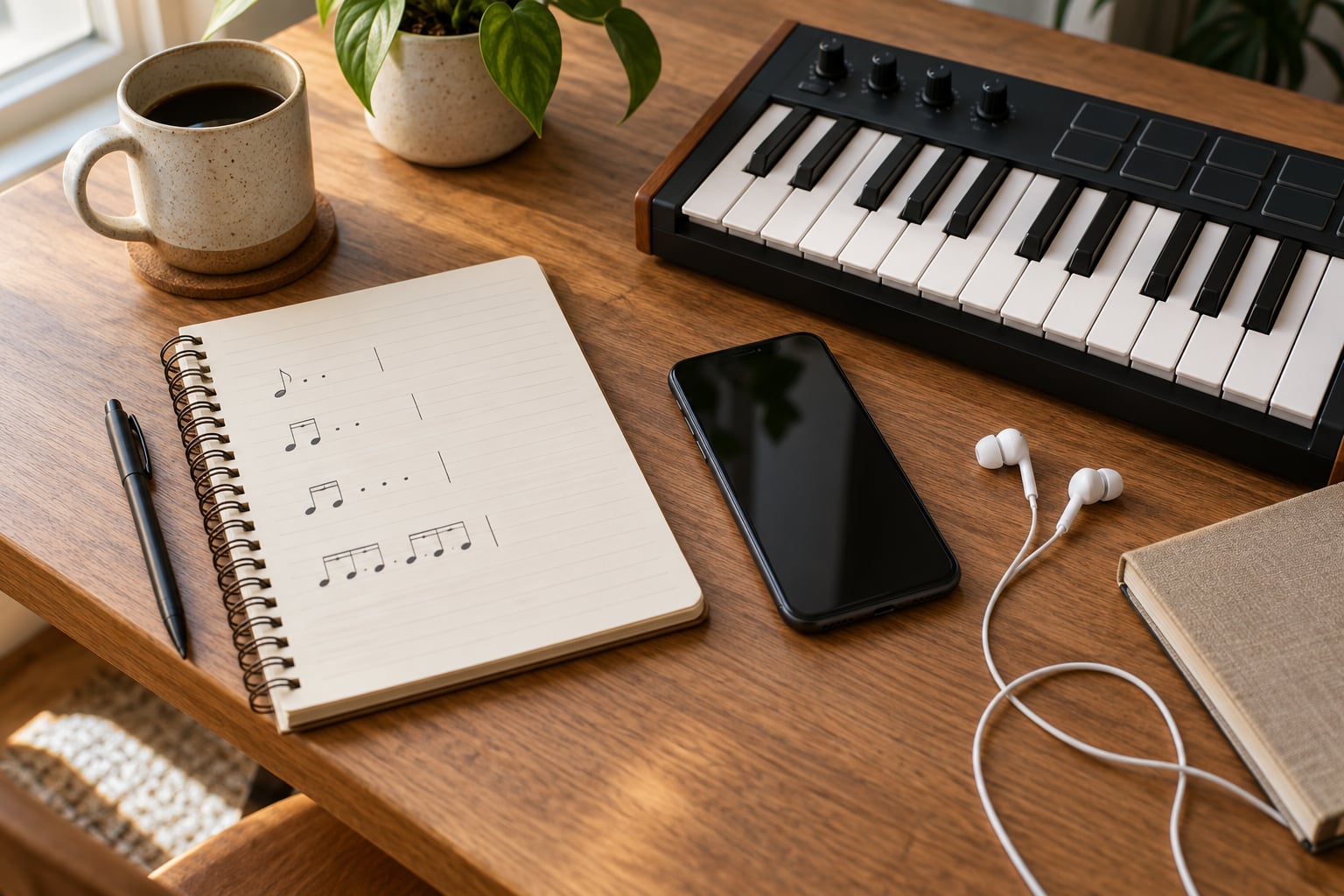
Open the step sequencer and place four sounds: kick, snare or clap, hi-hat, and one percussion layer. A hip-hop starting point is kick on step one and the and of three, snare on step three, hi-hats on every eighth note.
Keep it under sixteen steps for the first pass. Once it loops without your ear catching a gap, add a second variation by copying the pattern and moving the snare one step later, so you get a fill.
Swing is the next dial. Pushing the swing amount to somewhere around 55 to 60 percent loosens the pocket without making it sloppy. Compare the swung version against the straight one at low volume before you decide.
Add Bass, Melody, and Atmospheric Sounds
With drums locked, find the note the bass should center on and pick a sound that supports it. Deep 808 subs work for trap, a plucky reese or upright sound suits boom bap, and a filtered synth line fits electronic music.
Program bass notes in the piano roll on the kick pattern itself, then nudge them a hair late. That slight push is what makes programmed parts sound played rather than typed.
Melody comes next. If you play an instrument, connect a MIDI controller and record in one or two passes, playing along with the loop. If you do not, use scale highlighting so every note you tap fits the key, then keep it to four or five notes.
Add texture last: a vinyl crackle, a rain sample, a short reverb tail on a snare. Atmospheric layers are what separate a loop that sounds like a demo from one that sounds finished, and they take under five minutes.
Arrange, Mix, and Export Your Beat
Balance by ear, starting with the kick and snare. Pull the hats down until they sit behind the snare instead of on top of it, then bring the bass until it fills the space under the kick without fighting it.
Reach for effects carefully on a phone. A gentle low-pass on hi-hats, a short slap delay on the snare, and a small amount of reverb on melodic elements is usually enough. Skip anything that changes pitch, since mobile plugins rarely offer the fine control a desktop does.
Check the low end two ways: once on headphones and once through the phone speaker, because most listeners will hear it that way.
Then export as WAV rather than MP3. Set a file name before you hit export, something like trapbeat_Cmin_140bpm_v3, because version numbering saves you from overwriting the take you liked. Share the audio file by message or cloud link, or keep the project itself if the app supports saving.
Common Mistakes
Too many sounds. Six sounds, each with a job, beats thirty that overlap. Delete any layer you cannot describe the purpose of.
Clipping. Clipping on a phone speaker sounds different than on headphones, so check your master meter rather than trusting what you hear.
Ignoring arrangement. Repeating eight bars forever reads as unfinished. Duplicate the section and change one element in the second pass.
Bluetooth headphones. Switch to wired. No effect compensates for the timing offset.
Never exporting. Bounce a rough version after every session. Crashes, failed updates, and full storage happen, and an exported WAV always survives them.
Frequently Asked Questions
What is the best app for making beats on my phone?
The best app depends on your device and your goal. GarageBand is the easiest starting point on iPhone and costs nothing. BandLab is the strongest free option across iOS and Android, with cloud sync and collaboration. FL Studio Mobile suits producers who want a full DAW workflow and later handoff to desktop. Koala Sampler fits chopping and lo-fi sample work.
How do I make beats on my phone for free?
Install BandLab or GarageBand, both free, and work entirely inside their built-in drum machines and step sequencers. Every app discussed here has enough sounds and effects to finish a full beat without spending anything. Paid apps mostly add more control, extra instruments, and cleaner project handoff rather than unlocking the ability to make music at all.
Can you make professional quality beats on a phone?
Yes, for beats that sound finished on any streaming platform, and that is where most type beat catalogs come from. What a phone cannot do is dense multitrack mastering, heavy sidechain chains, or precise automation curves. Many artists shipped early work made entirely this way, so treat the phone as a legitimate tool rather than a compromise.
How do I transfer beats from my phone to my computer?
Export the project as an audio file, or share it through the app’s own sync system. BandLab stores projects in the cloud, so signing in on desktop gives you everything. FL Studio Mobile opens .flm project files in the desktop version, and GarageBand projects transfer to Logic Pro on Mac. In every case, exporting a WAV as a backup costs you nothing.
What AI app can I use to create beats?
BandLab and several mobile DAWs now include generators that turn a short prompt or a chord progression into a starting loop. These work well as a source of ideas and as a way to break through a blank project. They are less useful as a finished product, since generated patterns rarely need anything added. Use them for inspiration, then build your own on top.
Do I need MIDI keyboards or an audio interface to make beats on my phone?
Neither is required to start. Finger tapping on a piano roll works fine for melodies and chords. A small MIDI keyboard makes writing parts much faster once you are past the first few sessions, and an audio interface only matters if you plan to record vocals or instruments, since it replaces the phone microphone with something cleaner.
Start With One Loop and Build From There
Download one app, not five. Program a four-bar drum pattern at a tempo you chose deliberately, add one bass note and one short melody, and export it as a WAV with a clear file name.
That is the whole first session. Repeat it the next day with one improvement, and one section at a time you will end up with a finished track and a working knowledge of rhythm, arrangement, and mixing that no tutorial hands you for free.