If your plugins vanished from your DAW, the files are almost certainly still on your hard drive. A DAW only lists plug-ins it has scanned, so the usual causes are a wrong plug-in folder path, a format the DAW doesn’t read, a disabled or blacklisted entry, or a stale scan cache.
Work through the steps below in order and you’ll usually find the cause in under ten minutes. Start with the cheap checks, because reinstalling is the one fix that changes nothing when the real problem is a path or a cache.
Table of Contents
- What You Need
- Why Are My Plugins Not Showing Up in My DAW?
- Step-by-Step
- Common Mistakes
- Frequently Asked Questions
- Why are my VST3 plug-ins not showing in my DAW?
- Why did my plug-ins disappear after a DAW update?
- Can I use an AAX plug-in in a VST3-only DAW?
- Why does my DAW show a plug-in but no preset?
- Why are my plug-ins invisible in Pro Tools after installing them?
- How do I stop duplicate plug-ins from appearing in my DAW?
What You Need
Before you touch a single setting, gather these five things. Knowing what you have makes every later check faster.
- Your DAW name and version number (the About or Help screen has it)
- The plug-in manager, which is a panel inside your DAW’s preferences rather than a separate app
- The original installer for the missing plug-in, not just the vendor’s download page
- Administrator access on Windows, or your Mac login password for anything that touches /Library
- The vendor’s system requirements page for the specific plug-in build you have
The most important thing to establish first is the plug-in format. Your DAW only reads plug-ins built for the format it supports, and no setting can bridge that gap.
VST2 is the oldest VST format and barely appears in new plug-ins now. VST3 is the common Windows and cross-platform format. Audio Units (files ending in .component) are the macOS-native format. AAX (files ending in .aaxplugin) are Pro Tools and Avid-only formats used by third-party vendors. CLAP is a newer open format that several DAWs added recently.
If you install a VST3 plug-in and your DAW only reads Audio Units, nothing will appear no matter how many times you rescan. Match the format to the host before anything else.
Why Are My Plugins Not Showing Up in My DAW?
There are four distinct failure modes, and they look similar from inside the DAW even though the fixes have nothing in common. Telling them apart first saves you from reinstalling software that was never broken.
- Not installed for this DAW’s format. The installer placed a .aaxplugin bundle, and your DAW reads VST3 only. The file exists on disk and is simply invisible to your host.
- Installed, but the DAW never scanned the folder. This is the single most common real-world cause, and it usually comes from installing plug-ins while the DAW was already open. The scan ran at launch, finished before the installer wrote the file, and nothing has prompted a rescan since.
- Scanned, then hidden. The plug-in is in the list but greyed out, unticked, or blacklisted. A crash during a session can leave plug-ins disabled, and vendors sometimes ship a plug-in that loads under a different or shorter name than you expect.
- Present but unlicensed. An expired trial, a subscription lapse, or offline authorization shows up as a plug-in that appears in the menu and then refuses to open or produces no sound.
Two more causes sit behind those: architecture mismatches (an Intel-only plug-in on an Apple Silicon Mac, or a 32-bit plug-in in a 64-bit host), and a corrupted plugin cache, which is what produces the stuck scanning loops users report after a major DAW update.
| Symptom | Likely cause | First action |
|---|---|---|
| Plug-in missing entirely, no error | Format mismatch or folder never scanned | Check the file extension and the plug-in folder path |
| Missing right after installing | DAW was open during installation | Quit the DAW completely and reopen it |
| Appears but greyed out | Disabled, blacklisted, or unauthorized | Re-tick it in the plug-in manager, then check the license |
| Appears but will not open | Broken install or incompatible dependency | Reinstall over the top, then check the DAW log |
| Scanner hangs on one folder | Corrupted plug-in cache or a bad plug-in file | Rescan, then clear the cache if it repeats |
| Every plug-in disappeared after a DAW update | New major version reset stored paths | Re-enter your plug-in folders in preferences |
| Listed under an unexpected name | Manufacturer grouping or wrapper | Search by vendor, not by product name |
One more failure mode deserves its own note: a plug-in that shows in the menu but opens as an audio file rather than as an effect. That happens when you drag an .aaxplugin or .component bundle onto a track instead of loading it from the plug-in menu, and it’s a user error rather than a broken install.
Step-by-Step
Confirm the plug-in format and operating-system compatibility
Open your plug-in folder and look at what is actually there. On macOS, press Command-Shift-G in a Finder window and paste /Library/Audio/Plug-Ins/Components to see Audio Units, then check the same path inside your user Library folder at ~/Library/Audio/Plug-Ins/Components. On Windows, browse to C:Program FilesCommon FilesVST3 and C:Program FilesVSTPlugins.
Compare what you found against what your DAW supports. Then check architecture: on an Apple Silicon Mac, a plug-in that has no native arm64 build will only load if the vendor supplies a universal binary or if your DAW is running under Rosetta 2. On Windows, a 32-bit host cannot load a 64-bit plug-in at all, and a 64-bit host generally cannot load a 32-bit one without a bridge.
Success looks like this: you can name the file extension of your missing plug-in and you know your DAW reads that format. If you can’t name the extension, check the vendor’s system requirements page, which lists both the formats and the minimum OS and DAW version.
Check the plug-in manager and rescan locations
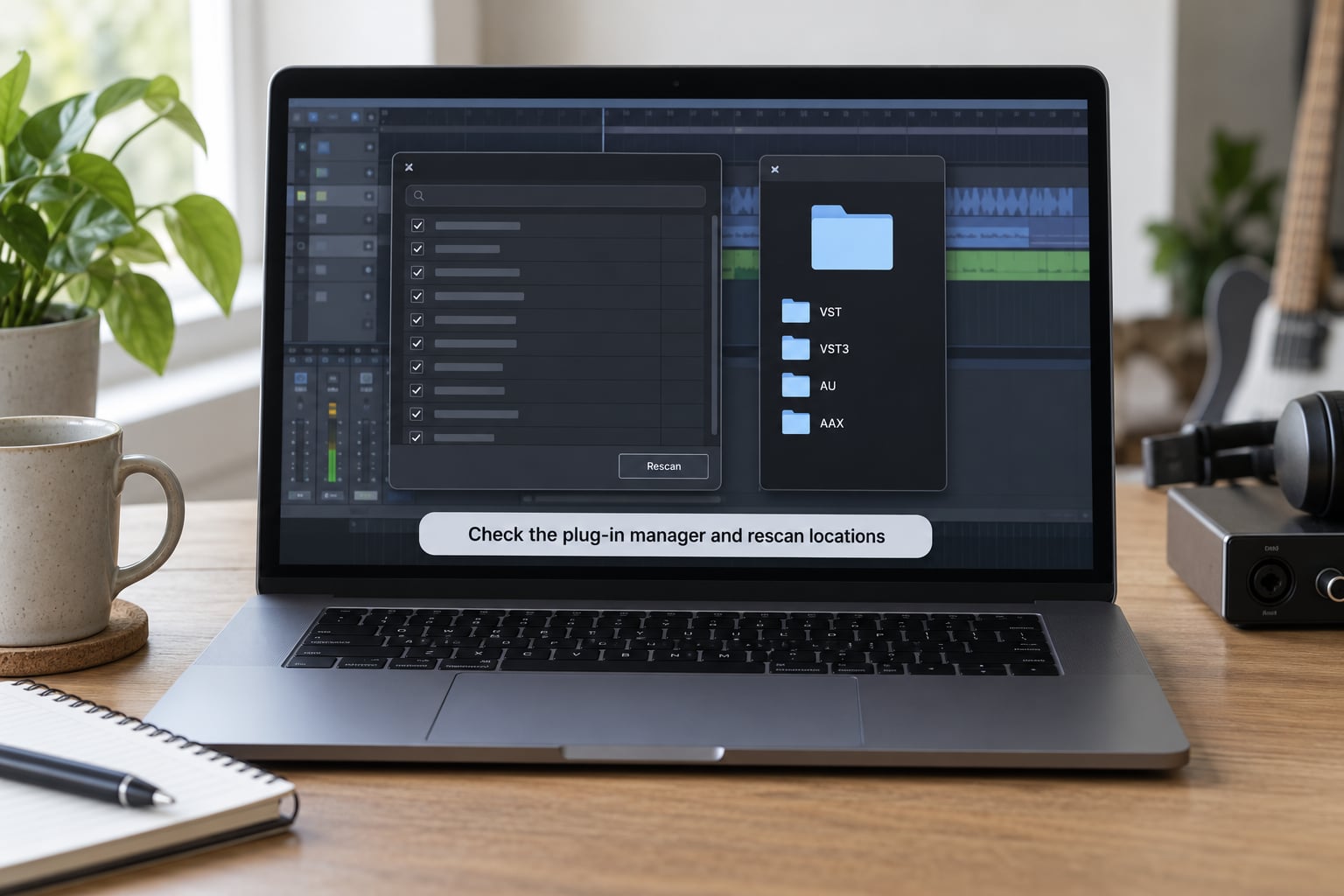
Your DAW’s plug-in manager lists every folder it scans and every plug-in it has found. It is the single place that answers most of these questions, and each DAW puts it in a different spot.
| DAW | Where the plug-in manager lives |
|---|---|
| Ableton Live | Preferences > Plug-ins, then Rescan |
| Logic Pro | Settings > Plug-ins > Rescan |
| Pro Tools | Setup > Plug-ins > Plug-in Manager |
| FL Studio | Options > Manage Plugins |
| Reaper | Options > Preferences > Plug-ins > Add |
| Studio One | Preferences > Plug-ins > Folder Locations |
| Cubase | Plug-in Manager, reachable from the MediaBay or the Pool |
In Ableton Live, the Plug-ins page also has the VST2 and VST3 folder paths and an Audio Units toggle on Mac. Untick any format you have just started using and the plug-ins will stay invisible no matter how many times you rescan.
In Logic Pro, the Plug-in Manager shows a checkbox next to every plug-in. Untick it and the plug-in is hidden without being removed, which is why a plug-in you installed last week can vanish after a Logic preference change.
On macOS, remember that installers sometimes place plug-ins in your hidden user Library folder instead of the system-wide one. In Finder, press Shift-Command-G, type ~/Library/Audio/Plug-Ins/Components, and you’ll see that folder. If your plug-ins are scattered between the user and system locations, add both paths or copy the bundles into the system folder.
Add the folder the plug-in actually lives in, then hit rescan. Don’t move plug-ins into a folder just to tidy things up: a manufacturer folder may contain libraries, presets, and content kits that break if separated from the plug-in bundle.
Success looks like this: the plug-in appears in the manager’s list, under the vendor’s name rather than necessarily the product name.
Verify the plug-in is enabled and authorized
If the plug-in is listed but greyed out, the file loaded fine and the problem is licensing or a disabled state. Re-tick it in the plug-in manager first, then open the vendor’s license manager to check activation.
Common authorization states you’ll see: an expired trial that silently stopped working, a subscription that lapsed and revoked the seat, or an offline machine that can’t reach the license server. On Mac, the iLok License Manager shows licenses as authorized, expired, or revoked, and a revoked one will leave the plug-in visible but unopenable.
Offline machines need either a grace period that hasn’t run out or an offline activation file generated on another computer. If you travel with a laptop, this is a common surprise on a Monday morning after a week unplugged.
Success looks like this: the plug-in’s interface window opens, and the plug-in’s version and vendor information display correctly.
Reset plug-in preferences and clear the DAW cache
Some plugins cache their scan results, and a corrupted cache produces the stuck scanning loop where a DAW sits on one folder forever. Close every project and quit the DAW fully before touching anything, and save a backup of any session you care about.
The safest route is a targeted rescan rather than a full reset. In Pro Tools, the installed plug-ins database is a file named InstalledAAXPlugins.ptpdb inside your session or user folder; deleting it forces a fresh AAX scan on the next launch, which is the standard answer on Avid’s own community forums for plug-ins that refuse to appear after an install.
In Ableton Live, removing plug-in preferences and letting the DAW rebuild them has fixed mangled folder paths for users whose VST3 list went wrong after an update. Treat that as a step after rescan fails, not before, because resetting preferences discards your plug-in folder configuration and any customization you have made to it.
Warning: resetting all DAW preferences clears your custom settings, templates, and control surface maps. Test the cheaper options first.
Success looks like this: the scan completes in a normal amount of time and your custom folder list is re-entered and saved.
Reinstall the plug-in cleanly

Reinstallation is the last step, not the first, because it rarely fixes a wrong path or a corrupted cache. When you do reach it, do it in the right order: uninstall the plug-in, restart the computer, reinstall, then open the DAW and rescan.
On Windows, run the vendor’s uninstaller rather than dragging the folder to the Recycle Bin, then restart before installing again. If the plug-in goes into Program Files, run the installer as administrator or Windows may put it in your user AppData folder where most DAWs will not look.
On macOS, remove the bundle from /Library/Audio/Plug-Ins/Components (and the user Library copy if there is one), restart, then install fresh. If macOS shows a security prompt about an unidentified developer, allow it in System Settings > Privacy & Security; a blocked plug-in installs successfully but never loads.
The single biggest reason a reinstall fails is installing while the DAW is open. The installer writes the file, the running DAW never rescans, and closing the window later leaves you exactly where you started. Restarting the machine after every plug-in install costs a minute and prevents most repeat visits to this problem.
Success looks like this: the plug-in appears in the manager after a rescan, without needing the installer’s post-install wizard again.
Common Mistakes
Most repeat visits to this problem come down to one of these.
Scanning the wrong folder. The plug-in is in your user AppData folder on Windows because the installer couldn’t write to Program Files, and your DAW only scans the system path. Either run the installer as administrator or add the user path to your plug-in folder list.
Confusing VST2 with VST3. Some vendors still name files loosely, and a folder called VSTPlugins often holds a mix. Check the actual file extension, not the marketing name on the website.
Running mismatched builds on an Apple Silicon Mac. An Intel-only plug-in needs a universal binary or Rosetta, and not every DAW offers a Rosetta mode. If your DAW has no Rosetta option, only native arm64 plug-ins will load.
Forgetting to restart. Not closing the DAW before installing, or restarting the DAW but not the machine after installing AAX plug-ins, are both reported repeat offenders on Avid’s community forums.
Moving plug-ins between directories. Relocating a plug-in bundle alone breaks its preset and content paths. Move the whole manufacturer folder, and only while both programs are closed.
Resetting preferences too early. You lose your plug-in folder configuration and have to rebuild it, and you may still not have found the real cause. Move down the list only when the step above failed.
Expecting every plug-in to work in every DAW. AAX plug-ins from a third-party vendor run in Pro Tools and Logic, not in Ableton, FL Studio, or Reaper. That is a format limit, not a fault, and the vendor’s compatibility table will say so.
A permanent fix takes about fifteen minutes: create one folder for all your plug-ins, install every future plug-in there, and point every DAW you use at that single location. It also makes moving to a new computer a folder copy instead of a full reinstall.
Frequently Asked Questions
Why are my VST3 plug-ins not showing in my DAW?
Most often the DAW scanned before you finished installing, or it is looking in a different folder. Open your DAW’s plug-in manager, confirm the VST3 folder path points at the location where the .vst3 files actually sit, make sure VST3 is enabled, and rescan. On macOS also check the hidden user Library folder at ~/Library/Audio/Plug-Ins/VST3, because installers frequently place plug-ins there instead of the system folder.
Why did my plug-ins disappear after a DAW update?
A major version update often resets stored plug-in paths and rebuilds the scan database from scratch, so plug-ins that were on a custom folder simply stop being listed. Open preferences, re-enter your plug-in folder locations, and rescan. If you had customized the folder structure, expect to re-add it after the upgrade and resave it so the next update changes less.
Can I use an AAX plug-in in a VST3-only DAW?
No. AAX is an Avid format and only loads in Pro Tools and DAWs with an AAX host layer, such as Logic Pro through Avid’s adapter. Ableton Live, FL Studio, Reaper, Studio One, and Cubase read VST3, VST2, AU, or CLAP depending on version, so an .aaxplugin bundle will never appear in their plug-in menus. Check whether the vendor ships a VST3 build of the same product.
Why does my DAW show a plug-in but no preset?
The plug-in is loading correctly; the content is what is missing. Program libraries, impulse responses, and content kits are often installed to a separate location than the plug-in itself, and some vendors ship plug-in and content as two installers. In Pro Tools, iLok and several vendors use the Plug-in Settings page to set the content location, and missing sound libraries show up there as an unavailable or red path.
Why are my plug-ins invisible in Pro Tools after installing them?
Pro Tools is the strictest scanner of the major DAWs. Confirm the plug-in installed as an .aaxplugin bundle, close Pro Tools, restart the machine, and launch again so the installed plug-ins database rebuilds. If it still fails, delete the InstalledAAXPlugins.ptpdb file from your Pro Tools user folder while Pro Tools is closed. Also check that the plug-in’s minimum Pro Tools version isn’t higher than yours.
How do I stop duplicate plug-ins from appearing in my DAW?
Duplicates usually mean the same plug-in is installed twice, most often as one copy in the system folder and another in your user Library or AppData folder, or as both a VST3 and a legacy VST2 copy. Uninstall one version, then delete the orphaned files from the folder the DAW is scanning. Consolidation into a single plug-in folder also prevents duplicates after the next reinstall.
Start with the simplest explanation: quit your DAW completely, reopen it, and rescan the plug-in folders. If it is still missing, check the file extension against the formats your DAW supports, then work down the steps above in order. Once you find the cause, move every future install into one plug-in folder so you stop running into this at all.