Direct monitoring is a hardware signal path inside an audio interface that routes an input straight to the headphone or speaker output without sending it through the computer or your DAW. You hear yourself with almost no delay while the same clean signal is still recorded to the software. The catch: nothing your DAW is doing shows up in that feed.
If you have ever played a guitar line twice because the first take drifted behind your own playing, that lag is latency. Direct monitoring is the feature that removes it, and this guide covers what it actually does, how it is wired, and where it falls short.
Table of Contents
- What Is Direct Monitoring?
- How Does Direct Monitoring Work?
- Why Use Direct Monitoring When Recording?
- Direct Monitoring vs. Monitoring Through Effects
- What Is Monitoring Latency and Why Does It Matter?
- How to Set Up Direct Monitoring for Beginners
- What Does Direct Monitoring Sound Like?
- Can Direct Monitoring Be Recorded Into the Track?
- Direct Monitoring and Recording Software
- Common Direct Monitoring Problems and Fixes
- Frequently Asked Questions
- Is direct monitoring the same as recording?
- Why does direct monitoring sometimes produce echo or feedback?
- Does direct monitoring mean no effects are recorded?
- What buffer size should beginners use for direct monitoring?
- Is direct monitoring better than using effects in headphones?
- Do I need an audio interface to use direct monitoring?
- Conclusion
What Is Direct Monitoring?
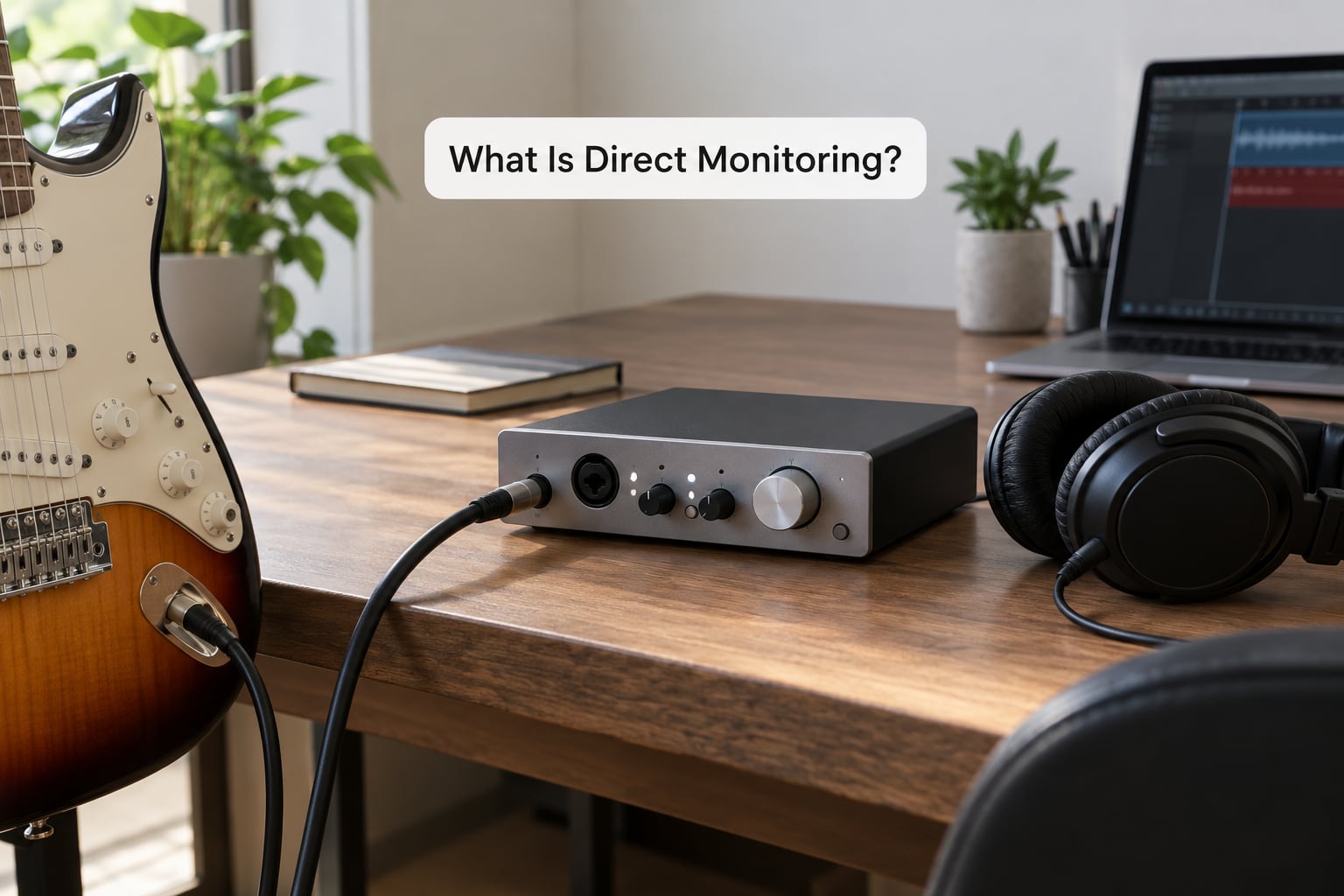
Audio monitoring simply means hearing a signal while it happens rather than after it is played back. On a recording setup there are two useful versions: monitoring the input as you play it, and monitoring what the recording software sends back. Direct monitoring is the first one.
The name changes across manufacturers and that is where most confusion starts. The same physical control might be labeled Direct Monitor, Input, Monitor, Direct/Plyb, or it might be a knob marked Input on one end and Playback on the other. A Scarlett-style blend knob crossfades between the two sources instead of switching between them.
What every version has in common is the path. The signal goes into the interface input, and a parallel hardware route copies it to the output stage. It never has to travel over USB, never waits for the DAW, and never gets processed by a plug-in.
A GearSpace thread is typical. A user with a Scarlett 2i4 described the Direct Monitor knob as something that blends the mix with the microphone when you are recording, and turned it toward the direct side to hear themselves better while tracking. Nothing about that is brand specific.
How Does Direct Monitoring Work?
Here is the two-path picture, which is really the whole concept in one block:
DIRECT (HARDWARE) PATH — near-zero delay
Instrument/Mic -> Input -> converter -> direct monitor switch -> Headphones

PLAYBACK (SOFTWARE) PATH — delayed, processed
Instrument/Mic -> Input -> A/D -> USB -> DAW + plug-ins -> USB -> D/A -> Headphones
Both paths start at the same input. They simply diverge. The direct path stays inside the box, so it skips USB transfer, driver buffering, the DAW’s own buffer, and every plug-in in the chain.
That skipped work is also why the direct feed can be honest in an unusual way. It is close to the raw converter output, which is why it can sound quieter or duller than the software version and why it will not match your mix until you calibrate with the level knobs.
On interfaces that can route any input to any output, the same idea extends. A user with a Komplete Audio asked whether inputs 3 and 4 could be monitored on outputs 1 and 2 through direct monitoring, which is a routing question rather than a monitoring question, but it comes from the same hardware logic.
Why Use Direct Monitoring When Recording?
The benefit is timing, and timing is hard to fake. Once your ear hears itself late, you unconsciously play late, and the recording keeps that drag.
- Vocalists hear their real pitch and breath support while tracking instead of guessing against a click.
- Guitarists and keyboardists keep a clean, unprocessed tone in their ears while the take is captured dry.
- Drummers and percussionists keep the room and the kit in front of them rather than a buried playback stem.
- Podcasters and voiceover artists hear level and tone as they speak, so a take does not have to be repeated because the mic was too hot.
- Live performers using in-ear or folded-back monitoring get a dependable signal that does not depend on the computer behaving itself.
For most tracking, direct monitoring also means less bleed in the headphone mix. When the vocal and the backing track are both coming out of the software at once, the vocal can wander into your microphone and print on the take.
Direct Monitoring vs. Monitoring Through Effects
Monitoring through effects means hearing yourself as the DAW processes the signal, so plug-in EQ, compression, reverb, amp simulation, and tuners are all audible in real time. That is more useful for some jobs and impossible inside a pure direct path.
The trade-off was put plainly on KVR Audio, and it is the sentence most people need: direct monitoring is listening to the input audio before it reaches the DAW. You cannot hear what the DAW is doing to your audio unless you listen to what the DAW has done to your audio.
| Monitoring mode | Delay | Plug-in effects | Best used for |
|---|---|---|---|
| Direct / input only | Near zero | None | Vocal tracking, overdubs, live performance |
| Playback (DAW only) | Buffer plus driver | All of them | Tuning tone, mixing, playback sessions |
| Blended monitor | Low | On the playback side only | Singing along with tracks without dragging timing |
| Real-time DSP cue mix | Near zero | Hardware-based | Amps, monitors, talkback, playback control |
If you genuinely want effects and low delay together, the honest answer is that most plug-ins run faster than you can play comfortably once every round trip is counted. Real-time DSP cue mixes are the professional compromise, and some interfaces also ship mixers that route signals in software while the audio itself never leaves the hardware clock.
What Is Monitoring Latency and Why Does It Matter?
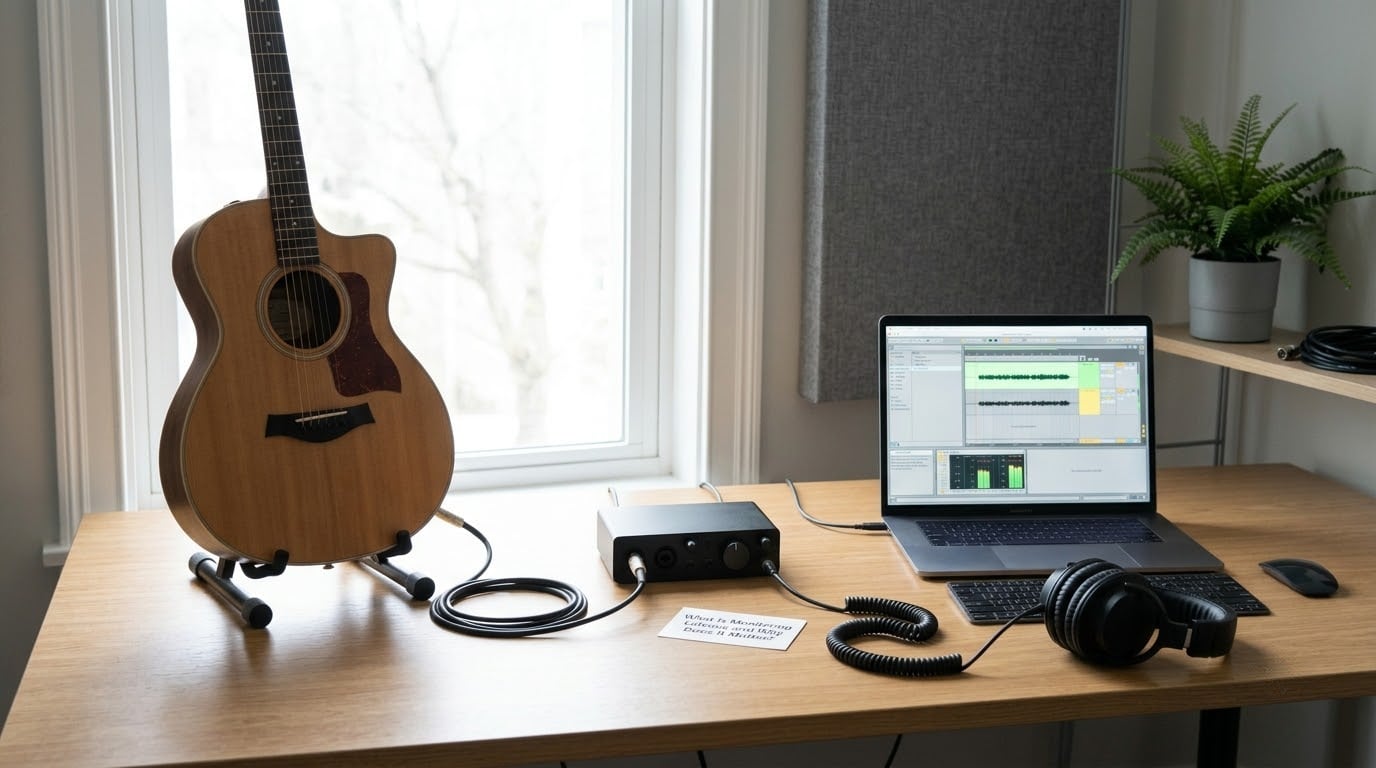
Latency is the delay between you producing a sound and hearing it come back. In a computer-based setup it accumulates in stages: analog to digital conversion, the DAW buffer, the driver buffer, and digital to analog conversion on the way out. That total is round-trip latency, because it covers both directions.
Buffer size is the biggest knob you control. A larger buffer is more forgiving of CPU spikes but adds delay; a smaller one is tighter but can glitch if the machine cannot keep up.
| Task | Comfortable round trip | Notes |
|---|---|---|
| Vocal tracking | About 10 ms or less | Sustained notes expose delay more than riffs do |
| Overdubbing | About 20 ms | Usually tolerable if the blend keeps your own voice direct |
| Guitar and keys | About 20 to 30 ms | Fingers hide short delays better than singers do |
| Drums | About 20 to 30 ms | Stick technique stays tighter at the low end |
| Mixing only | Not a concern | There is no performance to keep in time |
Wireless headphones add their own delay on top of everything else, often enough to erase the benefit entirely. A direct monitor path is only as fast as the last cable in the chain, so use wired headphones whenever the timing matters.
How to Set Up Direct Monitoring for Beginners
- Connect with balanced cables wherever the gear offers them. Plug the microphone or instrument into a preamp input, then plug headphones into the headphone output rather than into the computer.
- Turn up phantom power if you are using a condenser microphone. Most interfaces have a button per preamp, and condenser mics need it. Dynamic microphones generally do not.
- Find the monitor source control. Look for a button, toggle, or knob marked Direct, Input, Monitor, or a blend scale. Switch it toward the input side.
- Play something and check the level before recording. Turn the headphone volume down first, then bring it up to a comfortable level and no further.
- Confirm the signal is clean. Speak or play for ten seconds and listen for echo, doubling, crackle, or sound in only one ear before you commit to a take.
- Record a short test take and play it back to make sure the audio is landing where you expect it. Direct monitoring tells you nothing about what is being written to disk.
Two safety habits are worth keeping. Keep the headphone level lower than you think you need, because direct monitoring has no natural limit while you adjust gain. And if you ever monitor through open speakers with a microphone in the room, pull the level down first, because feedback starts fast.
What Does Direct Monitoring Sound Like?
It should sound like the instrument or voice, only in your ears. It will not sound like a finished mix, and if it does, something in the chain is doing more than you asked for.
| What you hear | What it tells you |
|---|---|
| Dry voice with no tail | Direct monitoring is active and nothing is being added |
| Reverb, EQ changes or a tuner display | You are on playback monitoring, not direct |
| Two copies of the same sound slightly offset | Both direct and playback paths are live at once |
| Noticeably quieter than playback | Normal. The direct path skips output stage processing |
| A thin or dull tone | Usually the raw converter output with no calibration applied |
Set your expectations this way: direct monitoring is a reference for pitch, timing, and tone, not a preview of the finished record. If you want to judge the finished sound, you play it back after the take.
Can Direct Monitoring Be Recorded Into the Track?
No. Direct monitoring only affects what reaches your ears. The signal sent to the computer is a separate send from the signal sent to your headphones, and the headphone feed is never captured by your DAW.
This is why muting an input channel in the DAW does not silence direct monitoring, which frustrates a lot of people trying to turn it off. The audio is not in the DAW at all, so the DAW has no authority over it. To stop hearing yourself, you change a control on the interface: the monitor switch, the blend knob, or the input gain on that preamp.
There is one case where the paths merge. Loopback and input monitoring features that record an input straight back to an output can send your voice onto a track without you doing anything, which is the usual cause of doubled vocals in podcast and livestream software.
Direct Monitoring and Recording Software
The DAW owns the playback side of your session, and three settings shape it: buffer size, sample rate, and the audio driver. ASIO on Windows and Core Audio on macOS are the low-latency driver layers, and their buffer settings usually override the DAW’s own default.
Here is the division of labour. The interface’s hardware monitor switch decides whether you hear the raw input at all. The DAW decides what the software side sounds like. When you want plug-ins, you put the interface in playback or blended mode and accept a little delay.
Software direct monitoring is the newer middle ground and worth knowing about. A few DAWs and driver suites now return an input through the host with the host bypassed, so the signal stays inside the interface’s clock while still reaching the host, which keeps delay far lower than a full round trip through the DAW engine.
Overdubbing has its own workflow that avoids the delay entirely. Send the cue mix to the interface with the overdubbed inputs muted, then blend the direct signal up so the performer hears themselves with no latency at all.
Common Direct Monitoring Problems and Fixes
| Symptom | Likely cause | Fix |
|---|---|---|
| No sound at all in headphones | Monitor switch set to playback, or the DAW has not opened the output | Switch to the input side, raise the headphone volume, then check the DAW output meter |
| Sound in only one ear | Mono or one-ear monitoring mode is engaged | Look for a mono or stereo toggle near the headphone jack and return it to stereo |
| Doubled or echoey voice | Direct and playback are both feeding the same output | Pick one path, or set the blend knob fully to one side |
| No plug-in effects | You are listening to the direct path, which bypasses software | Switch to playback or blended monitoring to hear the DAW |
| Squealing feedback | Open speakers and a microphone sharing a room | Use headphones, or turn the level down before trying again |
| Crackling or dropouts | Buffer too small for the machine, or a flaky USB connection | Raise the buffer a step, close heavy apps, try a rear USB port |
| Delay even in direct mode | Bluetooth headphones are in use | Switch to a wired pair |
The one-ear case is normal enough that people ask whether their interface is faulty. A mono monitoring toggle exists precisely so a single-input signal can be centred, and a forum user with a single input was told the answer was mono versus stereo monitoring rather than a broken box.
Frequently Asked Questions
Is direct monitoring the same as recording?
No. Recording sends the input signal to the computer so software can capture it. Direct monitoring is a separate hardware send from the same input to your headphones or speakers. One affects the track you are capturing, the other affects only what you hear. Because the two paths are independent, you can record with direct monitoring on, off, or mixed, and the saved file does not change.
Why does direct monitoring sometimes produce echo or feedback?
Echo usually means both the direct path and the software playback path are reaching the same output, so you hear your voice twice with a small offset. Move the blend knob fully to one side or switch the monitor source. Feedback is different: it happens when an open speaker plays back into a live microphone and the signal loops. Use headphones, and turn the level down before you try again.
Does direct monitoring mean no effects are recorded?
No, it means no effects are heard. The signal going to the computer is the same clean one whether or not you are monitoring it directly, so your recording stays dry. You can add plug-in compression, EQ, or reverb later on the track. What changes with direct monitoring is your ears, not the file. If you want to hear effects while playing, switch to playback or blended monitoring.
What buffer size should beginners use for direct monitoring?
It depends on your machine and sample rate, so test rather than guess. Start around 128 samples per buffer, record a short pass, and step down in halves until you hear glitches, then step back up once. In direct monitoring the buffer affects the software path, not the hardware path, so a smaller buffer mainly helps when you are blending playback with direct signal.
Is direct monitoring better than using effects in headphones?
Neither is better in general. Direct monitoring wins for timing, pitch, and a clean take, because there is almost no delay and no bleed from your headphone mix. Monitoring through effects wins when you need to hear tone shaping, an amp model, a tuner, or backing tracks. Most working setups alternate between the two rather than committing to one.
Do I need an audio interface to use direct monitoring?
Yes, effectively. Direct monitoring is a hardware routing feature inside an audio interface or a rack converter. A computer’s built-in sound card has no low-latency input-to-output path and no monitor switch. Headphones plugged into a laptop will always be monitoring through software, which is why tracking on a laptop feels laggy by comparison.
Conclusion
Direct monitoring is a clean, fast connection between you and your input signal. It routes the signal inside the interface, skips the computer entirely, and gives you a near-instant reference for pitch and timing. What it gives up is every plug-in in your DAW, because the software is not in that path.
Before you press record, check four things. Confirm the interface input is the source your headphones are monitoring, confirm the signal is present and in both ears, keep the level low enough to stay comfortable, and use wired headphones. If you plan to use effects while playing, switch to blended or playback monitoring and treat the delay as part of the trade.